
All guides
Your campaign
A campaign holds your world: the people, places and things your players meet. Each one is an entry with its own profile, and the Campaign tab is where you find, read and edit them.
Five kinds of entries
- NPCs: anyone the party can talk to. Suggested details: race, occupation, location, personality, voice, motivation.
- Locations: towns, taverns, dungeons, the room behind the bar. Region, district, atmosphere.
- Factions: guilds, cults, noble houses. Goal, leader, headquarters.
- Items: the cursed blade, the missing ledger. Rarity, owner, properties.
- Lore: events, traditions, prophecies, laws of magic. Category, what common folk believe, and the real details.
Every kind can also have a secret: what's really going on, for your eyes only.
Finding an entry
The list on the left shows every entry. Filter it by kind with the buttons at the top, or type in Search or describe…. That box finds names and nicknames, and also descriptions: “old dwarf who makes swords” finds Thorvin even though those words aren't in his name.
Creating an entry
By hand
- Click + next to the search boxIt makes the kind of entry you're filtering on, or an NPC.
- Fill in what you knowA name, a one-line summary (what you need at a glance), and the nicknames it also answers to. Then the details: the suggested fields are there to start you off, and you can add any field you like, such as “ac”, “hp” or “accent”.
- Click CreateYou can change anything later with Edit.
With AI
✦ Generate, at the bottom of the list, writes a whole profile from one sentence, like “a nervous halfling dockhand who owes the Ashen Hand money”. It also suggests connections to your existing entries. Nothing is saved until you've reviewed it, and every field can be changed first. This needs an AI model: see Setting up an AI model.
From your documents
Import, next to Generate, reads a PDF or your notes and suggests every NPC, place, faction and item in it. See Importing and exporting.
Reading a profile
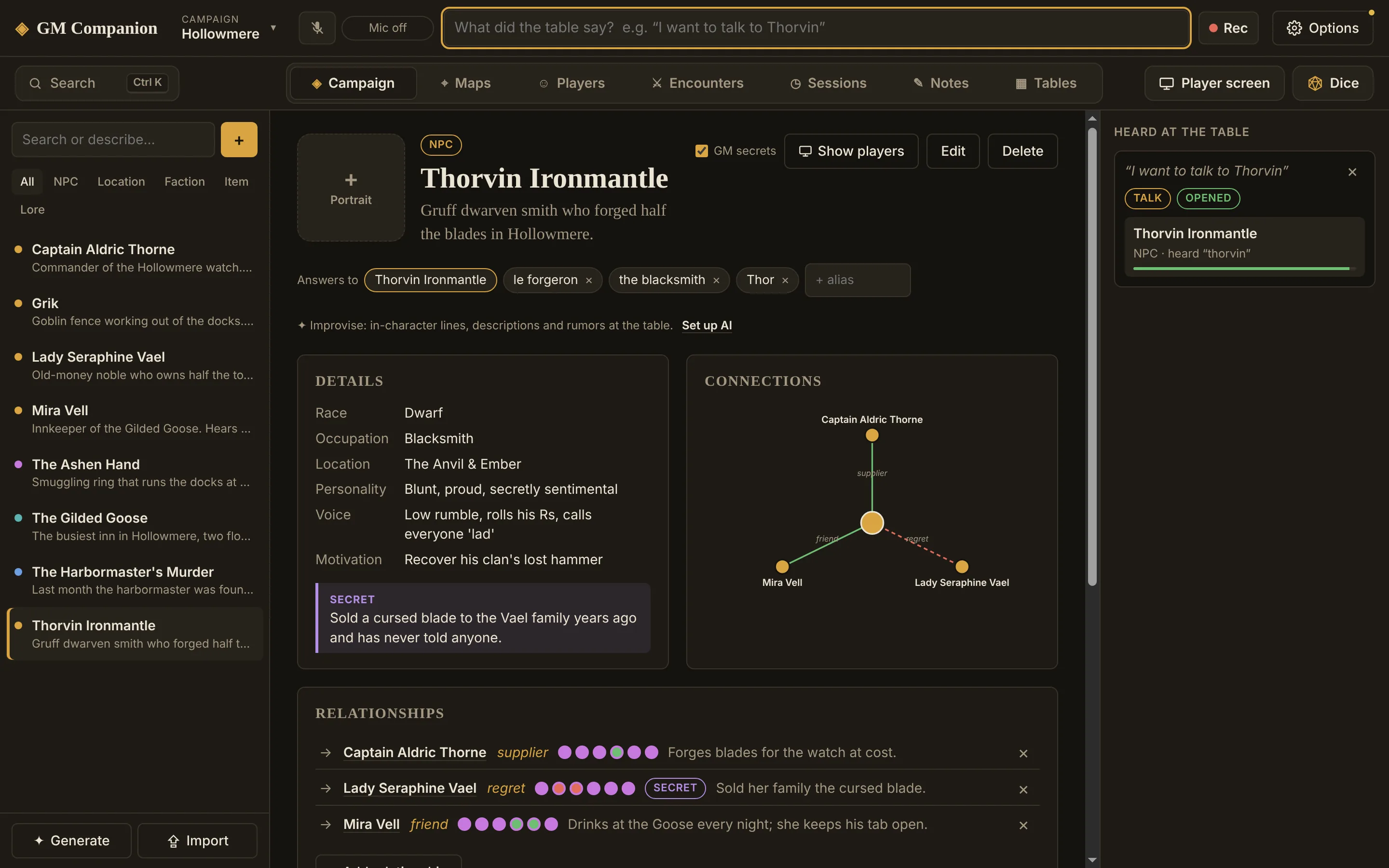
- Answers to: the names this entry is found by. Add nicknames, titles and roles here (“Thor”, “the blacksmith”, “le forgeron”). This is what makes listening work, so it's worth a few seconds per NPC.
- Details, with the secret in its own purple box.
- Connections: a small map of who this entry is linked to. Click a name to go there.
- Relationships: the same links as a list, with their attitude and notes.
- Pictures: handouts, art, what a place looks like.
- Session notes: dated notes about what happened with them, newest first.
Relationships
Relationships are what make a town feel alive: who owes whom, who hates whom, who's secretly working together.
- Click + Add relationshipOn the profile, under Relationships.
- Choose the direction and the other entry“Thorvin → Mira” is how Thorvin sees Mira. “← Thorvin” is how she sees him. Feelings don't have to be mutual.
- Describe itGive it a kind (friend, rival, owes money…), optional details, and an attitude from −3 (hostile) to +3 (devoted). Tick Secret if the players shouldn't know about it.
Hiding secrets
The GM secrets checkbox at the top of a profile hides secrets and secret relationships. Turn it off before you share your screen or let a player look over your shoulder.
Portraits and pictures
Click the empty square next to the name to add a portrait, or drop or paste a picture onto it. Portraits also show as small circles in the list. Under Pictures, use + Picture, drop files on the panel, or paste. Click any picture to see it big, give it a caption, show it to your players, or make it the portrait.
Pictures are shrunk and saved inside the campaign file, and location data from photos is removed.
Session notes
At the bottom of a profile, jot what happened (“Party bought two longswords on credit. He will remember.”) and click Add. Notes are dated, and recaps can add them for you: see Recording sessions and recaps.
Managing campaigns
The campaign menu at the top left switches between campaigns and holds New campaign…, Export… and Delete….